xiats
xiatsHome › Help center › Talking avatars
Talking avatars: Set the voice and avatar, then generate
Enter dialogue and action descriptions, parse and confirm the content, then select a voice, avatar, aspect ratio, and quality. Wan 3.0 generates video with audio. Review the quote before submission, then preview and download the result.
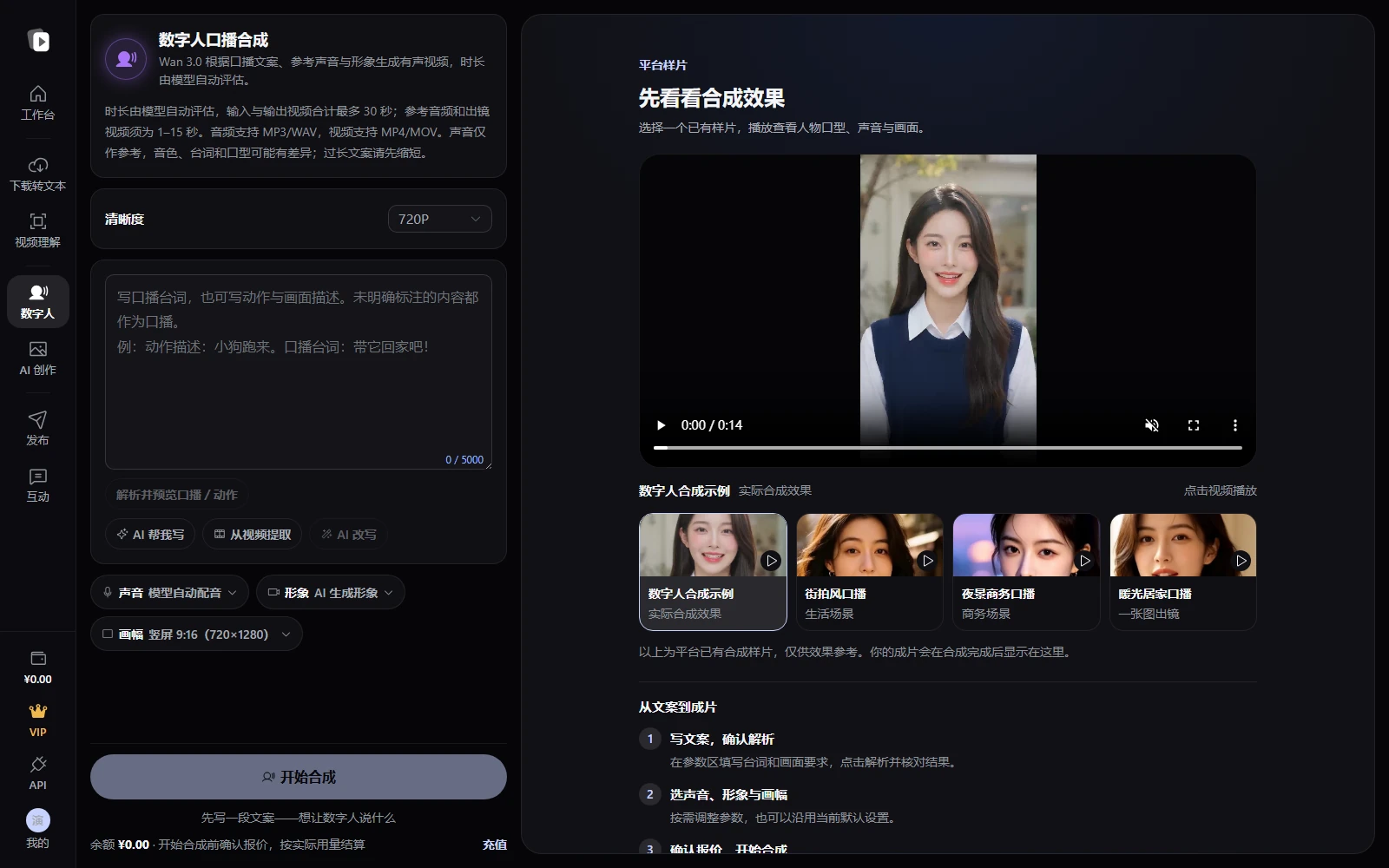
This guide covers the web workspace's Talking avatars: settings are on the left; existing examples play on the right. After submission, view your results and generation history there.
Steps
- Write and parse the promptOpen Talking avatars and enter the script. Label action descriptions and spoken dialogue explicitly when including actions or scenes. Click Parse & preview dialogue/actions, check the separated speech and visuals, then confirm the parsing result.
- Set voice, avatar & aspect ratioKeep automatic voiceover or select a voice or upload a reference in the Voice panel. Avatars support AI generation, your own photo, presenter footage, and available presets. Choose an aspect ratio and 480p, 720p, or 1080p quality.
- Review the quote and generateWait for the quote, expand its details, and review any notices. Then click Start generation and confirm the cost. Changes to the script or parameters require a new quote; final charges reflect actual usage.
- Preview and downloadProcessing status and results appear on the right. When ready, preview and click Download video to save. Generation history shows past jobs. If status needs verification, query the original task.
Voice library: Clone your own voice
Open the Voice panel, then Voice library, and click Upload voice sample. Preview it, click Clone, review the fee, and wait for the Cloned status. Return to Talking avatars to select it. Use a clear single-speaker recording longer than 10 seconds; check the Voice library for supported formats and sizes.
Frequently asked questions
What are the reference audio and video requirements?
Directly uploaded reference audio and presenter videos must be 1–15 seconds. Audio supports MP3/WAV; video supports MP4/MOV. Use clear footage with a distinct subject. Input and output video durations combined must not exceed 30 seconds; follow on-page validation.
Must I clone a voice or upload avatar footage first?
No. Automatic voiceover and an AI avatar are available. For your own voice, choose a cloned voice or upload reference audio. Reference audio does not guarantee verbatim dialogue or an identical final voice.
How are duration and cost determined?
The model estimates duration automatically; shorten long scripts first. Review the current quote and itemized details before generation. Final fees reflect actual usage. Task and settlement status are shown on the page.
Where are completed videos saved?
Click Download video in the right result panel to save to your device through the browser. You can also open videos from Generation history. Download them promptly.