xiats
xiatsHome › Help center › Product photo processing
Product photos: Ten tools to prepare your listing
Upload a product photo to remove watermarks, replace the background, extend it to a square, upscale, retouch a label, or change its style. All ten Wan general image editing operations are on one page. AI can also write descriptions and selling points from the image.¥0.20 per operation, one output image, automatic refunds on failure.
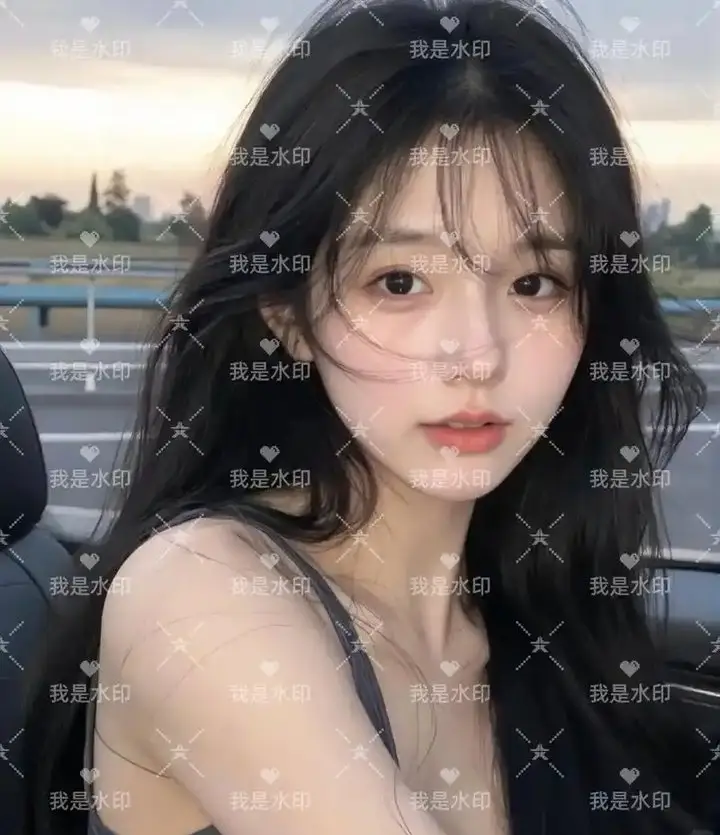
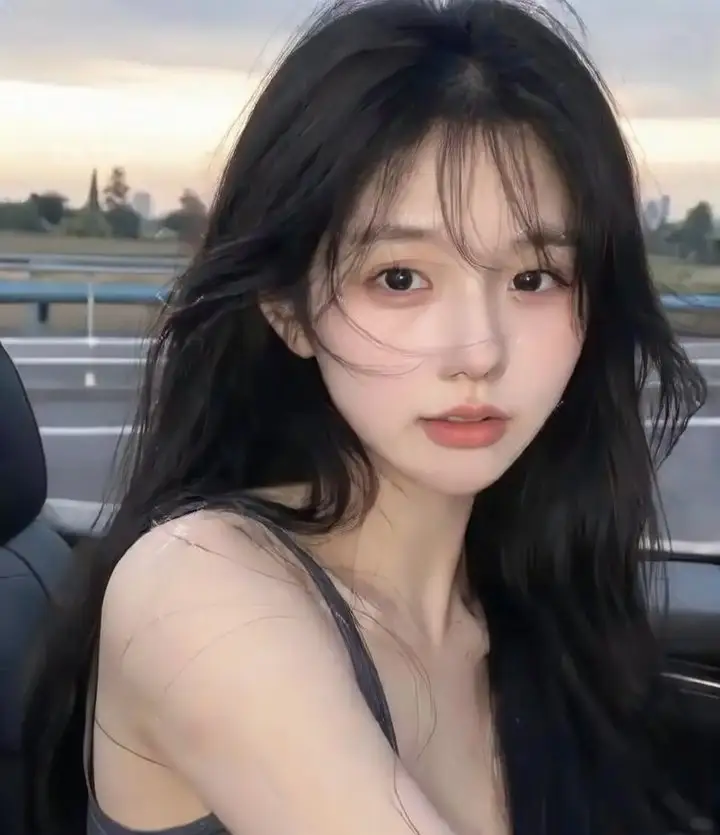
See the result: Text watermark removal
This is a real result using Remove text watermark with no prompt or other adjustments. Repeated text and pattern watermarks were removed while hair, skin texture, and the background railing were preserved.
Wipe comparison: Original on the left, processed result on the right.
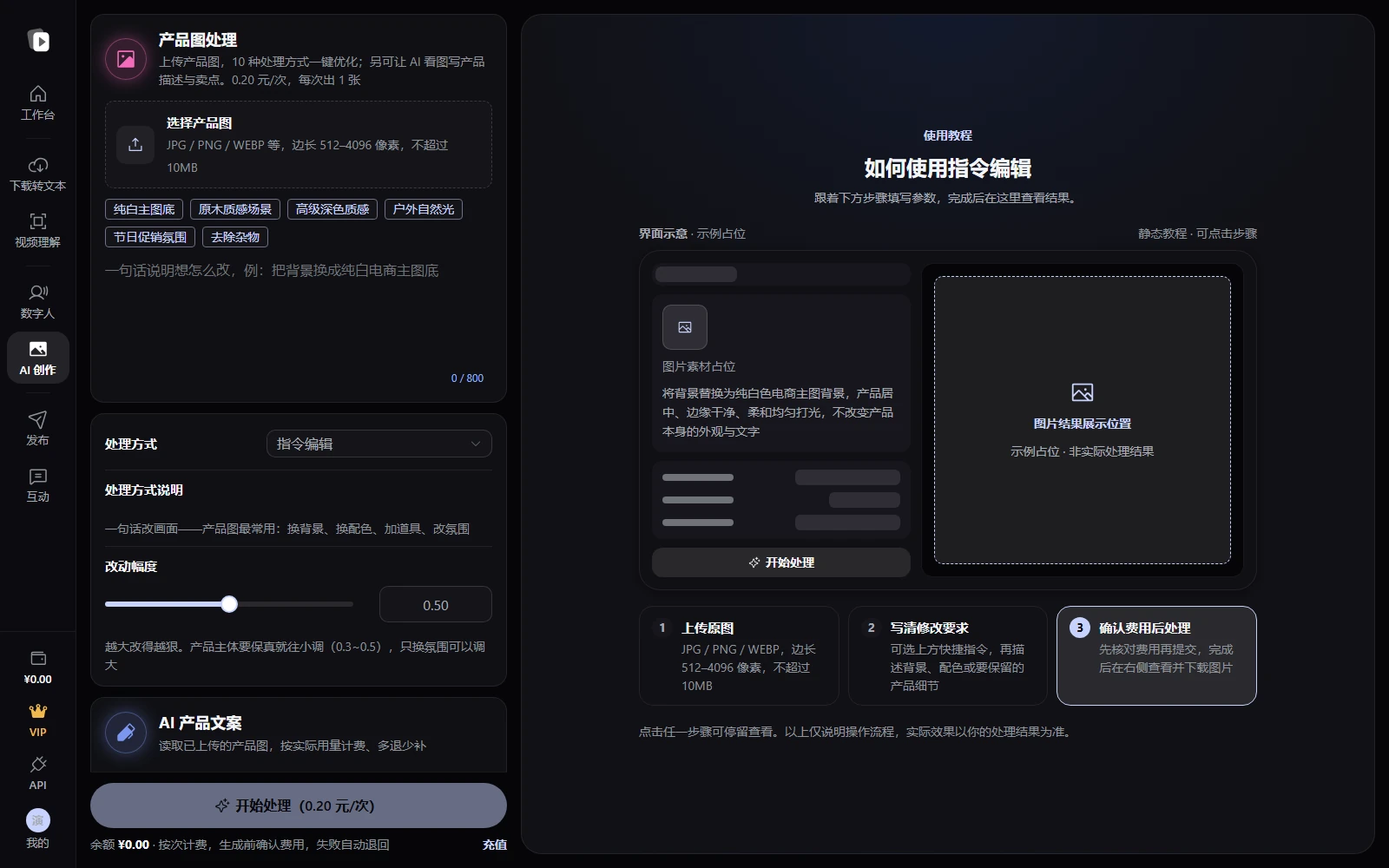
Hover over AI creation in the web sidebar and select Product photo processing. The interface screenshot reflects the current web version; before/after images are separate result examples.
Start in three steps
- Open the toolSign in and open Workspace → AI creation → Product photo processing. On desktop, use AI creation → Product photo processing in the sidebar.
- Upload a photo and choose an operationSelect an operation from the dropdown. The page shows only settings used by that operation. Operations requiring a prompt are identified.
- Confirm the charge and get your resultThe dialog shows ¥0.20 and your balance. Confirm to start, then download the result. Output links are temporary and expire after about 24 hours.
Ten editing operations
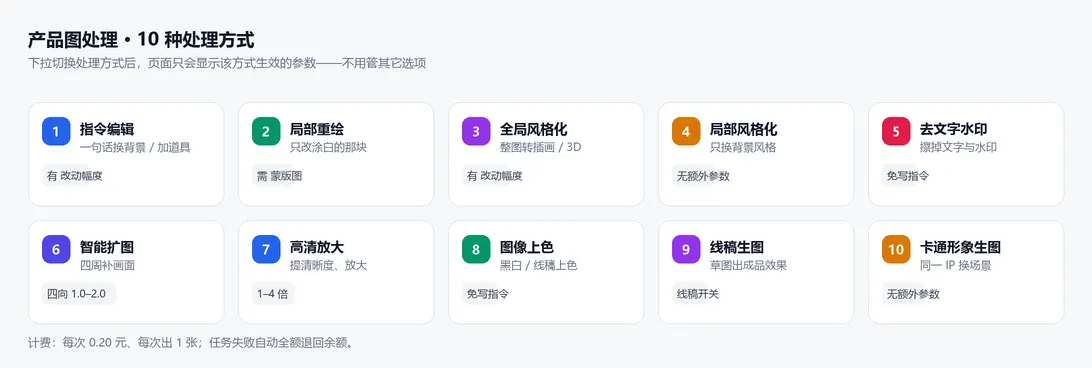
| Operation | Purpose | Prompt required? | Specific settings |
|---|---|---|---|
| Instruction editing | Describe a change: background, colors, props, or unwanted objects | Yes | Edit strength 0–1 |
| Inpainting | Edit only the white area of a mask: logos, labels, or imperfections | Yes | Requires an additional mask image |
| Global styling | Restyle the whole image: photo to illustration, 3D, or hand-drawn art | Yes | Edit strength 0–1 |
| Local styling | Restyle part of the image, such as the background, while preserving the subject as much as possible | Yes | None |
| Remove text watermarks | Erase text and watermarks | No | None |
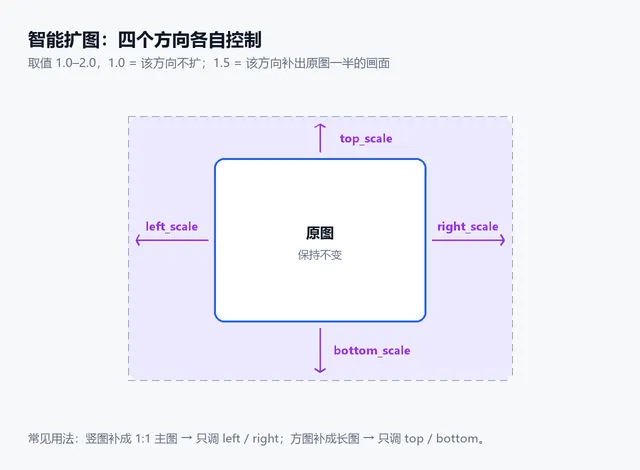
| Outpainting | Extend the edges: portrait to square, or square to a longer image | No | 1.0–2.0 independently in four directions |
| Image upscaling | Enhance detail and resolution before listing small or old photos | No | 1–4× scale |
| Colorization | Color black-and-white images or line art, optionally with a specified palette | No | None |
| Sketch to image | Turn a sketch into a finished visualization before prototyping | Yes | Already line art toggle |
| Cartoon character generation | Use a cartoon character as a reference to generate new scenes with the same character | Yes | None |
1. Instruction editing: Everyday product photo changes
Describe the desired result in one sentence. Three common ecommerce needs are white backgrounds, new settings, and clutter removal.
Choosing edit strength: Higher values make larger changes. Lower the value to preserve product shape, logos, and text. 0.3–0.5 is a steady starting point. For mood or color changes, try 0.6–0.8.
2. Inpainting: Change only a selected area
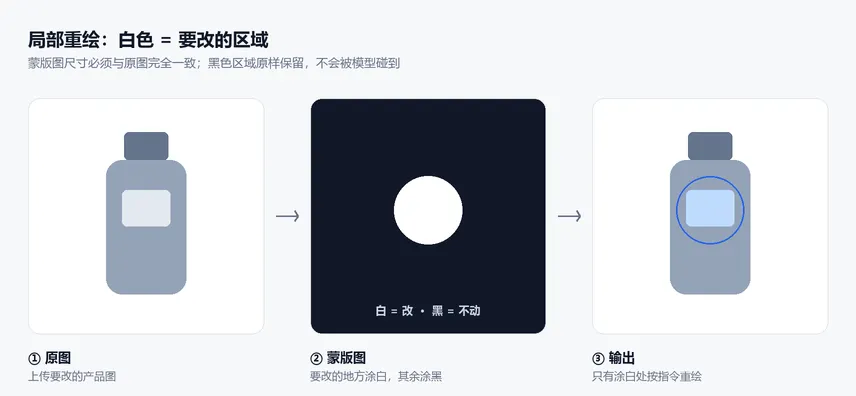
Upload an additional mask image: white marks areas to change; black preserves them. Mask dimensions must exactly match the original. Even a one-pixel difference is rejected.
3. Outpainting: Turn a portrait into a listing image
Control each direction independently from 1.0 to 2.0. 1.0 means no extension; 1.5 adds half the original dimension in that direction.
4. Upscaling: Prepare old or small photos for listing
Choose a scale from 1 to 4. At 1×, only clarity is enhanced, useful when dimensions are sufficient but the image is soft.
5–10. Other operations
Global and local styling: Convert photos into illustrations, 3D, or flat art for detail pages and banners. Local styling tries to preserve the product while changing the background or atmosphere.
Colorization: Color old black-and-white photos or line art. Specify a palette in the prompt, for example: Use brand blue as the main color with a light gray background)。
Sketch to image: Turn a hand-drawn sketch into a finished visualization. If the upload is already line art, enable Already line art. Leave it off for a photo if the system should extract lines first.
Cartoon character generation: Upload a cartoon character and generate new settings with the same character for stickers and related creative assets.
AI product copy: Write from the image
Scroll down the web settings panel to AI product copy. It uses the product photo already uploaded, so no second upload is needed. Choose from five copy types:
- Product description— Identify the product and audience, then describe materials, craftsmanship, specifications, and use cases for a detail page
- Selling points— Five points, each under 20 characters, ordered by appeal to buyers
- Titles / hero image copy— Five ecommerce titles and three short image captions
- Social recommendation copy— About 150 characters in a Xiaohongshu-style voice, with hashtags
- Editing suggestions— Assess the photo against ecommerce standards and provide three ready-to-use editing prompts
The model is instructed to describe only visible information. It must not invent dimensions, ingredients, certifications, prices, or other details that cannot be seen.
Billing & refunds
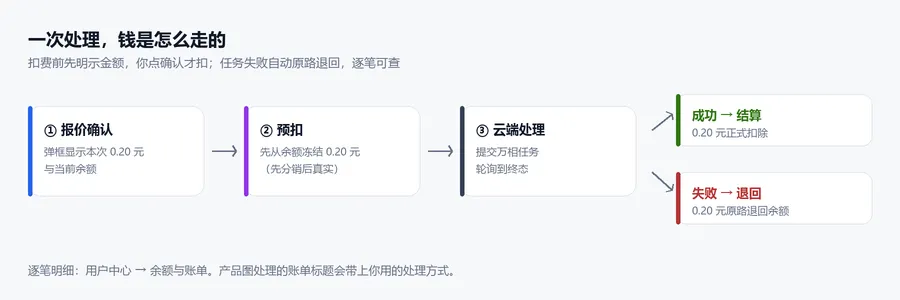
- Photo processing: ¥0.20 per operation for one image, regardless of operation or settings.
- AI product copy: Settled by actual token use, with overpayments refunded or shortfalls charged. A ceiling amount is reserved first (about ¥0.12 for qwen-vl-max), and any remainder is returned after settlement.
- No charge for failures: Failed cloud tasks or rejected submissions receive a full refund of reserved funds.
- Every transaction is recorded: See Workspace → Balance & billing. Photo processing transaction titles include the operation, such as Product photo processing · Remove text watermarks.
Image requirements & common errors
- Formats: JPG / JPEG / PNG / BMP / TIFF / WEBP
- Dimensions: Both width and height must be 512–4096 pixels. Small screenshots or icons may need upscaling to meet the minimum.
- File size: Maximum per image: 10MB。
- Mask: Required only for inpainting, with dimensions exactly matching the original.
| Message | Cause and solution |
|---|---|
| “XX” requires an editing prompt | This operation requires a prompt. Add a description and resubmit. Validation does not charge you. |
| Inpainting requires a white-area mask | Upload a black-and-white mask matching the original image dimensions. |
| Insufficient balance | Your balance is below ¥0.20. Click Top up in the dialog, then retry after payment. |
| AI service temporarily unavailable | The platform service is temporarily disabled. Retry later or contact support. No charges occur during this period. |
| The task finished, but the result is unsatisfactory | Make the prompt more specific about what to preserve, or lower edit strength. Each retry is a new paid operation. |
Sign in and open Workspace → AI creation → Product photo processing. Upload an image and try an edit for ¥0.20.
Frequently asked questions
How is product photo processing priced?
¥0.20 per operation for one image. A dialog shows the price and balance before you confirm. Failed jobs are fully refunded automatically. See Workspace → Balance & billing for each transaction.
How does this differ from Image editing? Which should I use?
Image editing offers four operations at ¥0.40 per image, with up to four images per batch, suitable for multiple alternatives. Product photo processing offers all ten operations and ecommerce prompt presets at ¥0.20 for one image, plus AI product copy. It offers more coverage and value for product photos.
Can watermarks be removed cleanly?
Repeated text watermarks can often be removed without harming the subject, as shown in the real example above. Large marks, dense textures, or heavy overlap may leave traces. Retry or use inpainting to refine the remaining areas.
Why only one output image?
Pricing is per operation: ¥0.20 for one image. Repeat the operation for more alternatives, or use Image editing to generate up to four at per-image prices.
How long are results available?
Temporary cloud links last about 24 hours. Download promptly. During that period, reopen results from the history below the tool.
Is this available on desktop?
Yes. Open AI creation → Product photo processing. Features match the web version. Desktop additionally supports BYOK with your Alibaba Cloud Model Studio key, billed to your cloud account without platform fees.
Are watermarks added to outputs?
No. Outputs contain no platform branding.